Crop first — free, to a ratio, or to a circle on your colour — then the usual matte, edges and size.
Crop before the background goes in
On this page the Crop tab opens first, with a box over the whole picture. Drag it or its corners, pick a shape, and the stage above shows the JPG exactly as it will be saved. The matte, the edge repair and the size controls all work on the cropped part, so the edge is judged where it will be seen.
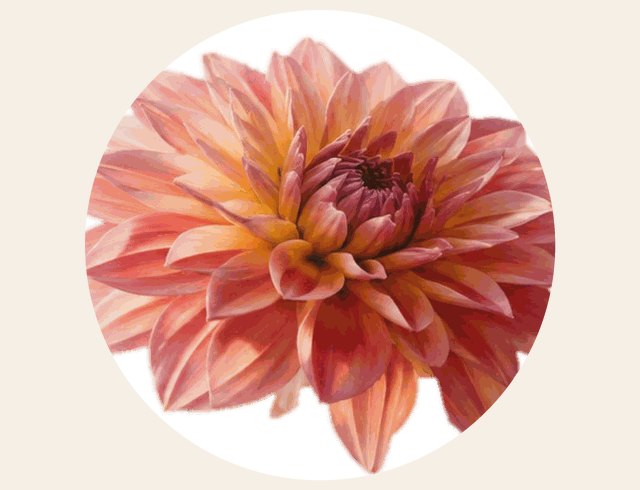
A circle is the case other croppers get wrong: they offer a round picture, then save a square JPG with black or white corners nobody chose. Here the corners are your matte colour, chosen in the Matte tab, and the page says plainly that a JPG cannot be round.
Three steps
- 1Open or paste the PNG. Tap Trim transparent borders if it has an empty margin.
- 2Drag the box, or choose Circle or a ratio. Arrow keys nudge the box.
- 3Pick the colour for the corners under Matte, then Save.
What it does not do
- Rotate or straighten the picture.
- Keep transparency: outside the crop's circle, and under every transparent pixel, the matte colour goes in.
- Find a face or subject for you: the box goes where you put it.
Questions about cropping
Can I save a round JPG?
No file of this kind can be round: a JPG is always a rectangle and has no transparency. Circle crop keeps the circle and fills the corners outside it with your matte colour, with a soft one-pixel rim. If you need real transparency around a circle, the file has to stay a PNG.
What does Trim transparent borders do?
It removes every row and column around the picture that is completely transparent — the empty margin many exports carry — so the JPG is only as big as what you can see. A single faint pixel counts as visible, so nothing you can see is cut.
Which aspect ratios are offered?
Free, 1:1 (square, for profile pictures and listings), 4:5 and 3:4 (portrait posts and prints), 16:9 (slides and banners) and 3.5:4.5 (the usual passport-photo shape). Choosing one centres the largest box of that shape; drag it where you want.
Can I undo a crop?
Yes. Every change to the box is a step on the undo list (Ctrl+Z), and Reset goes back to the whole picture. Your PNG on disk is never changed.
Can I crop to an exact pixel size?
Crop first, then set the pixels under Size — width × height with fit, fill or stretch — or use the resize page.