A folder does not have one background
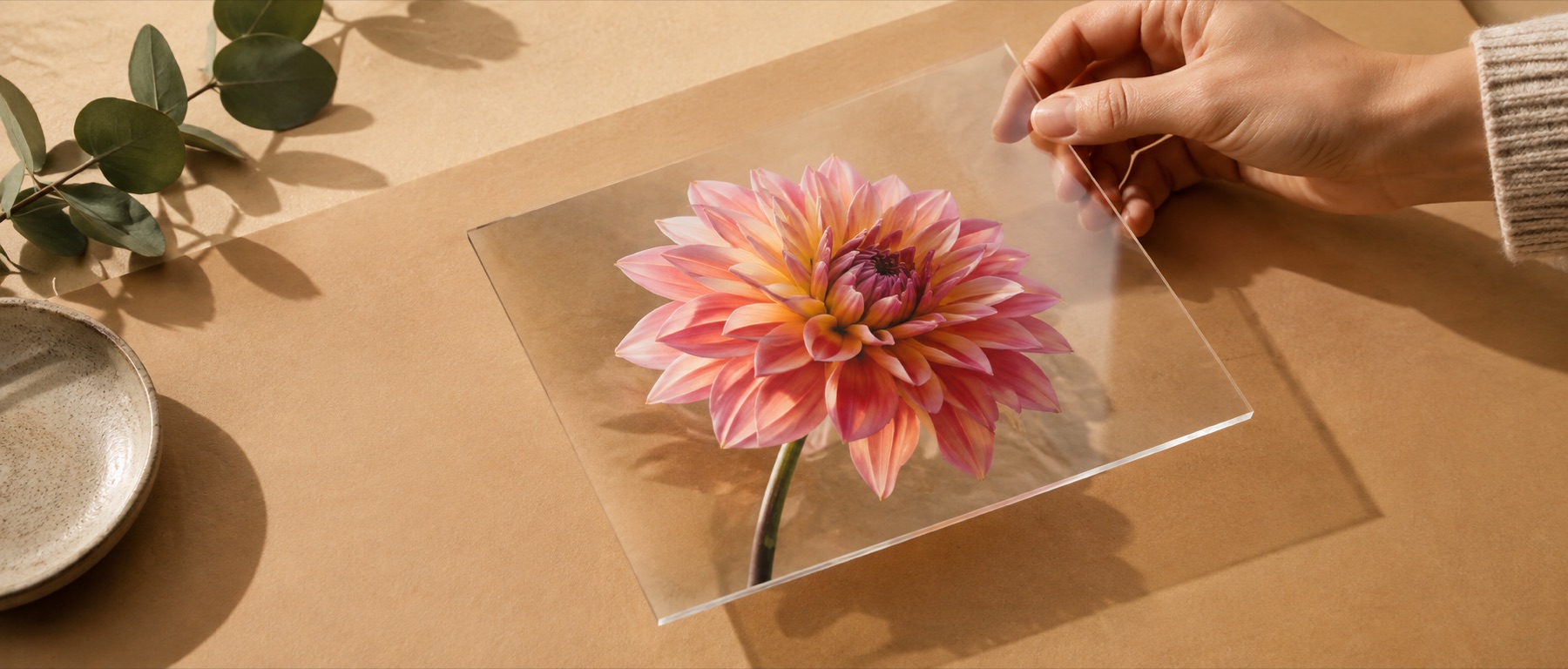
The usual batch converter paints one colour under every transparent pixel in every file. That is fine for a folder of icons made in one place. It is wrong for the folder most people actually have: logos collected from three different websites, product cut-outs from two photographers, a chart exported from a slide. Each of those was cut out against something, and the part-covered pixels along each edge still carry that something.
So here the matte is a rule. The default reads the old background out of each file's own edge pixels and puts that colour underneath, which is the one colour that leaves no rim. Where a file has nothing to read — a palette PNG with hard on-off transparency — the fallback colour you picked is used instead, and that row says “fallback”.
Running a batch
- 1Drop the PNGs, choose several in the picker, or choose a whole folder. Only files ending in .png are taken from a folder.
- 2Read the preflight line: how many files, how many with transparency, how many palette PNGs, and any over the working limit (those get a lighter copy).
- 3Pick the rule for the background, the quality, an optional long edge, and whether to repair edges first.
- 4Press Convert. Rows fill in one by one with the size, the matte used and the colour sampling read back from each JPG.
- 5Download all as a ZIP, or save single rows. A repeated file name gets a number rather than overwriting the first.
When a batch is the wrong tool
- When one file needs a decision the others do not — a size limit for a form, a colour matched to a page. Open that one on its own; every control is there.
- When the folder is screenshots of text. JPEG softens type and is often larger than the PNG. The single-file converter says so file by file; a batch will convert what it is given.
- When the transparency still has a job to do. A batch spends it on every file at once.
Questions about converting many files
- How many PNGs can I convert at once?
- There is no count limit. Files are converted one at a time, so only one full-size picture is held in memory however long the list is. What eventually limits a very long run is the memory the finished JPGs take while they wait to be zipped, which on a desktop is thousands of ordinary files.
- Why does each file get a different background colour?
- Because under the default rule the colour is recovered from each picture's own edge pixels — the background it was cut out of — so a logo lifted off a dark header and a chart cut from white each get the matte that leaves no rim. Choose “One colour for all of them” when every file is going onto the same background. Each row prints the colour it used.
- What happens to a file that is not a PNG?
- A JPEG renamed .png goes into the ZIP unchanged, with a .jpg name and the line “Already a JPG. Nothing was re-encoded.” A WebP, GIF, BMP or AVIF is converted the same way as a PNG. Anything else gets a line saying what it is, and the run carries on with the next file.
- Is the ZIP compressed?
- No, and on purpose. JPEG data is already compressed; deflating it again saves almost nothing and costs time. The archive stores the files as they are, so opening it is instant and every JPG inside is byte for byte the one listed in its row.
- Are the files uploaded to make the ZIP?
- No. The PNGs are decoded in this tab, each JPG is written in this tab, and the archive is assembled in this tab from those JPGs. The download is a file your browser already holds.
Next steps
- Convert one PNGThe full workspace for a single file: matte, edges, size, quality, verdict.
- PNG to JPG in KBWhen one file has to land inside a kilobyte range.
- When to keep the PNGHow to spot the files in a folder that should not be converted.